ROVI-Sports User Manual
Set-up, calibration, shot capture, processing, reading results and GSPro connection for the evaluation version of ROVI-Sports, a golf launch monitor that films the ball and club with two high-speed cameras and calculates shot data.
1. Introduction
ROVI-Sports is a golf launch monitor. Two high-speed monochrome cameras (820 fps) standing beside the golfer film the ball and clubhead at impact; AI finds and tracks the ball and club and calculates the shot data.
What it measures
| Group | Metrics |
|---|---|
| Ball (7) | Ball speed · launch angle (LA) · launch direction (LD) · total spin · spin axis · back spin · side spin |
| Club (5) | Club speed · club path · attack angle · face angle · dynamic loft |
Workflow
| Step | Task | Chapter |
|---|---|---|
| 1 | Position the cameras, set exposure and lighting | 3 |
| 2 | Calibration capture (once after set-up, again whenever a camera moves) | 4 |
| 3 | Capture shots | 5 |
| 4 | Process → check results · send to GSPro | 6 · 7 · 8 |
2. Components and specifications
Components
| Item | Details |
|---|---|
| Cameras | Two high-speed monochrome cameras (820 fps, global shutter) — Cam1 wide view, Cam2 close-up of impact |
| Lighting | 850 nm infrared lighting (or diffused LED) |
| Mount | A vertical rail holding the two cameras one above the other |
| Processing PC (evaluation version) | Ubuntu 22.04 · Python 3.10 · NVIDIA GPU |
| Product (in development) | Dedicated NVIDIA Jetson device + Companion App |
Recommended processing PC (evaluation version)
| Item | Minimum | Recommended |
|---|---|---|
| CPU | 4 cores, 2.5 GHz | 8 cores, 3.0 GHz or more |
| GPU | None (runs on CPU, slowly) | NVIDIA RTX 3060 6 GB or better |
| Memory | 8 GB | 16 GB or more |
| Storage | 10 GB (software and models) | 500 GB (to keep captured data) |
3. Set-up
3.1 Positioning the cameras
Stand the camera rail beside the ball's target line, on the side opposite the golfer. The swing arc and follow-through pass on the golfer's side and toward the target, so even 30 cm from the ball the club does not hit the cameras.
- Stand the rail vertically (check with a level). The bottom end of the rail is about 300 mm from the ball.
- Cam2 (bottom): mount it at the ball end of the rail, facing the ball. About 300 mm to the ball (not closer than the lens's 150 mm minimum focus distance).
- Cam1 (top): mount it at the other end of the rail and tilt it slightly up so that it sees the ball and the space above it where the ball flies. About 580 mm to the ball (50–70 cm between the cameras).
- Check that the ball is about 146 px across in Cam2 (at 300 mm). Below 75 px, spin is hard to measure; move Cam2 closer in 50 mm steps.
3.2 Exposure and lighting
| Item | Setting |
|---|---|
| Exposure time | 100 µs or less (prevents blur) |
| Auto exposure | Off (same brightness every shot) |
| Gain | As high as possible without noise |
| Ball area brightness | Mean 130–180 (on a 0–255 scale) |
| Saturation (blown-out pixels) | Under 5% |
| Lighting | Diffused light from 45° on both left and right, within 500 mm of the ball. Avoid strong reflections on the ball |
3.3 Software
A PC installed by FLOYD is ready to use. On a new PC, unpack the FLOYD evaluation package and run:
pip install -r requirements.txt
pip install torch torchvision --index-url https://download.pytorch.org/whl/cu121   # NVIDIA GPU (CUDA 12)
python3 -c "import torch; print(torch.cuda.is_available())"                       # True means the GPU is used
4. Calibration
Calibration works out each camera's lens properties, where the cameras are relative to each other, and the ground and target direction (world coordinates). It has the biggest effect on accuracy, so always do it after set-up and again whenever a camera moves. Finish it before capturing shots.
| Capture | Contents | Amount |
|---|---|---|
| A. Chessboard pairs | Cam1 and Cam2 photograph the same chessboard at the same time | 30 pairs or more, spread evenly over 9 areas of the picture |
| B. Marker board | One simultaneous Cam1 + Cam2 pair of a marker board on the ground | All 6 markers visible in both pictures |
4.1 Chessboard
| Item | Value |
|---|---|
| Pattern | 11 × 16 inner corners (12 × 17 squares) |
| Square size | 23 mm (for another size, enter the real size when calculating) |
| Material | A flat board that does not bend, printed to within 0.1 mm |
- Divide the picture into 3 × 3 areas and take 3–5 shots in each, plus a few more at different angles and distances. Shots only in the centre make the edges of the picture less accurate.
- Hold the chessboard 700–900 mm from the cameras, regardless of where the ball is (at 300 mm it fills too much of the picture).
- File names pair the images by capture time:
calImage/2026-11-18_14-30-22_Cam1.bmp,…_Cam2.bmp
4.2 Marker board
Place six markers on a board lying level on the ground, at the positions below. The direction from the origin zero toward pos10_x becomes the target direction.
| Marker | Position (X, Y, Z) m |
|---|---|
zero | (0.00, 0.00, 0) — origin |
pos10_x | (0.10, 0.00, 0) |
pos20_x | (0.20, 0.00, 0) |
pos30_x | (0.30, 0.00, 0) |
pos10_y | (0.00, 0.10, 0) |
pos5_x_pos5_y | (0.05, 0.05, 0) |
Right after the chessboard shots, without moving the cameras, take one Cam1 + Cam2 pair and save it in calImage_Marks/.
4.3 Calculation
python3 tools/calibration/calibrate_rig_and_world.py --config <calibration config file> --square_size_mm 23The result (rig and world coordinate file) is linked into the processing settings. If this is your first time writing the config file, send the captured calImage/ and calImage_Marks/ folders to FLOYD and we will calculate it for you.
5. Capturing shots
5.1 Capture settings
| Item | Setting |
|---|---|
| Frame rate | 820 fps (fixed) |
| Sync | Cam1 and Cam2 capture together, triggered at impact |
| Frames | 15 per shot — 1–2 before impact and 8–10 or more after impact |
| Ball placement | The same spot on the tee (within ±5 px on screen) |
| Ball | Both plain and marker balls are processed (spin is steadier with marker balls) |
5.2 Folder layout
Make a folder for each shot under a folder for each club, and put the 15 frames from both cameras in it. The club folder name (Driver, 7Iron, SW) selects the club recognition model, so keep these names.
data/
├── Driver/
│   ├── 1/
│   │   ├── Cam_1_roi_1.bmp … Cam_1_roi_15.bmp
│   │   └── Cam_2_roi_1.bmp … Cam_2_roi_15.bmp
│   ├── 2/
│   └── …
├── 7Iron/
└── SW/
5.3 Checking capture quality
For the first few shots, open the Cam2 frames and check:
| Check | Target | If not |
|---|---|---|
| Ball diameter | 75 px or more (about 146 px recommended) | Move Cam2 toward the ball in 50 mm steps |
| Brightness | Ball area mean 80–190 (130–180 recommended) | If dark, increase exposure or lighting; if bright, shorten exposure |
| Saturation | Under 5% | Cut exposure by 30–50% or move the lights |
| Contrast | Dimples and markers are sharp | Add diffused side light, remove direct light |
| Frames after impact | 8 or more frames with the ball visible | Trigger earlier, or move Cam2 a little further away (up to 400 mm) |
6. Processing
./run.sh single data/Driver/1 data/Driver/1 out/Driver/1     # one shot: <Cam1 folder> <Cam2 folder> <output folder>
./run.sh batch  data/ out_batch/                             # every club and shot under data/
When both cameras' frames are in one folder, give the same folder for Cam1 and Cam2.
Main options when running directly:
python3 src/golf_tracker_server.py --config configs/config_multiview_v1_default_sign_fixed.yaml \
--cam1 data/Driver/1 --cam2 data/Driver/1 --output out/Driver/1 --artifact_mode production| Option | Contents |
|---|---|
--artifact_mode production | Save result files only (the default diagnostic also saves check images and intermediate data) |
--data_dir / --output_dir | Many shots at once (same as batch) |
--gspro | Send results to GSPro (chapter 8) |
--disable_club_pose | Turn off club keypoint recognition (ball data only) |
7. Reading results
Each shot's results are saved in its output folder.
| File | Contents |
|---|---|
roi/roi_result.csv | One line of shot data (table below) |
roi/shot_metrics.json | All ball, club and spin results with confidence |
trajectory.csv | The ball's 3D trajectory |
club_metrics.json | Club results and recognition status |
launch_conditions.yaml | Launch conditions summary |
roi_result.csv columns
| Column | Meaning | Unit |
|---|---|---|
Ball speed | Ball speed | m/s |
Launch Direction | Launch direction (left–right) | ° |
Launch Angle | Launch angle (up–down) | ° |
Total spin | Total spin | rpm |
Spin axis | Spin axis tilt | ° |
BackSpin / SideSpin | Back spin and side spin components | rpm |
Club Speed | Clubhead speed | m/s |
Club path | Club path (swing direction) | ° |
Attack Angle | Attack angle (up–down angle of approach) | ° |
Face Angle | Face angle | ° |
Dynamic Loft | Dynamic loft | ° |
Example (driver shot):
shot ID,Ball speed,Launch Direction,Launch Angle,Total spin,Spin axis,BackSpin,SideSpin,Club Speed,Club path,Attack Angle,Face Angle,Dynamic Loft
roi,56.92,-4.43,6.72,3941.2,-3.63,3933.3,-249.4,36.15,-5.75,-5.85,-9.49,10.91Club data comes from keypoints on the clubhead (shaft, heel, toe, top and bottom of the face, and so on) found in Cam1 and Cam2 and calculated in 3D.
8. GSPro connection
Shot results can be sent to the golf simulator GSPro.
- In GSPro, turn on UDP under Settings → Connect → External Devices (default port 921).
- Add
--gsprowhen processing.
python3 src/golf_tracker_server.py --config configs/config_multiview_v1_default_sign_fixed.yaml \
--data_dir data/ --output_dir out_batch/ --gspro --gspro_host 127.0.0.1 --gspro_port 921| Option | Contents | Default |
|---|---|---|
--gspro_host | Address of the PC running GSPro | 127.0.0.1 (same PC) |
--gspro_port | GSPro port | 921 |
--gspro_speed_unit | Ball speed unit (mph / ms) | mph |
9. Companion App (UX preview)
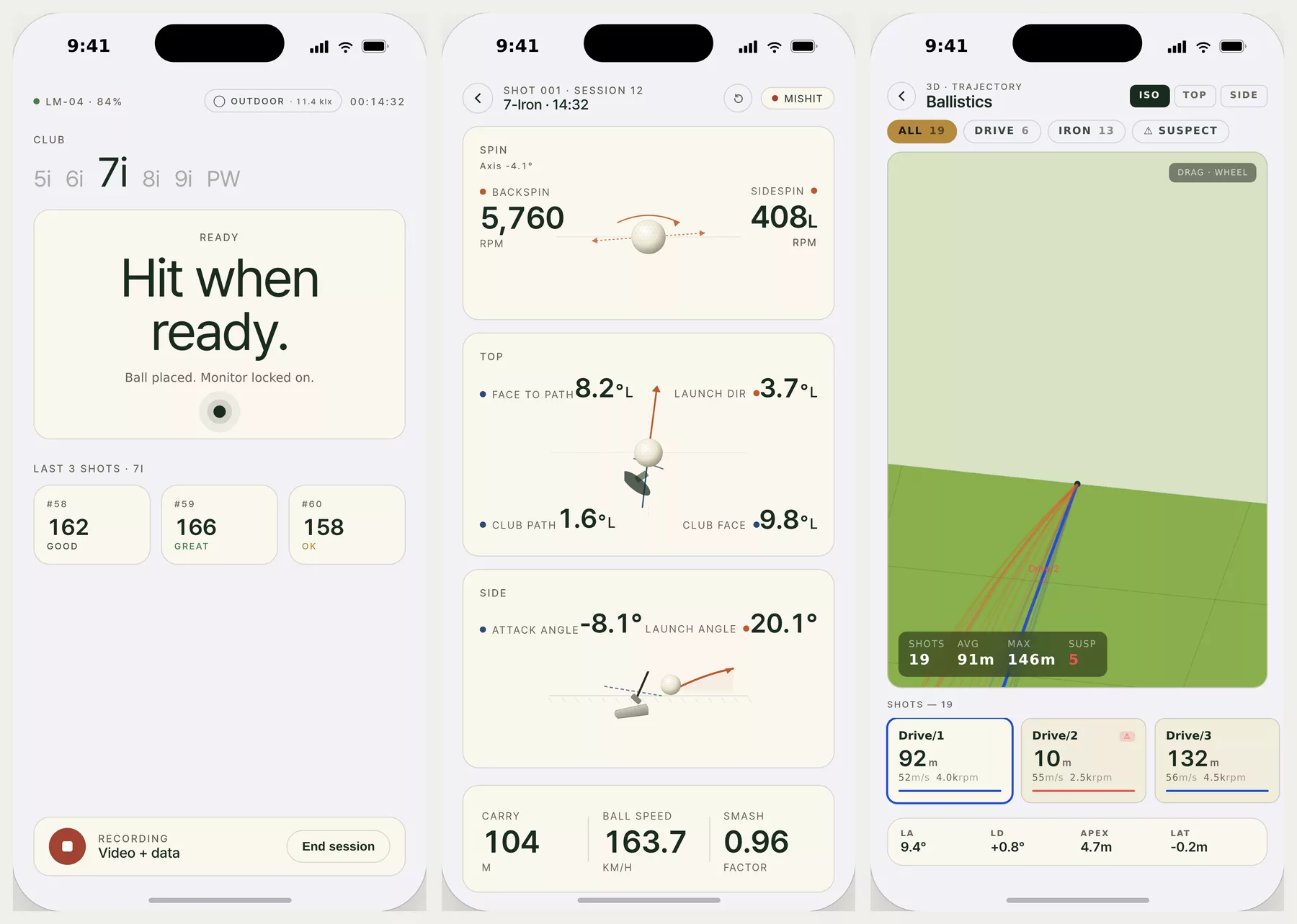
The design (UX concept) of the phone app that will be used with the dedicated device in the product version. The current evaluation version (chapters 1–8) has no app, and screens and features may change during development. Figures on the screens are examples.
Screens
| Screen | Contents |
|---|---|
| 01 Onboarding | Product intro — ball flight, spin and club delivery from three angles |
| 02 Sign in | Account sign-in and linking |
| 03 Pair | Finds a nearby launch monitor and connects (shows signal strength) |
| 04 Session | Club choice, the "Hit when ready" screen, the last three shots with grades, video + data recording, end session |
| 05 Shot result | Spin (backspin, sidespin, axis), top view (face to path, club path, club face, launch direction), side view (attack angle, launch angle), carry, ball speed, smash. Scroll down for the AI read and drill suggestions |
| 06 3D trajectory | Every shot of the session in 3D — iso, top and side views, drag to orbit, suspect shots marked |
| 07 History | Monthly average carry, best and shot count, carry trend, session list |
| 08 Compare | Two shots side by side, comparing trajectories and figures |
| 09 Course | Pick a course and simulate a round |
Display modes and units
- Three looks: light, dark and low-light. Low-light is for dark places such as indoor simulator rooms, dimming the screen to reduce glare.
- Chosen automatically from the ambient light (re-checked every 5 minutes); tap to fix it yourself for 24 hours.
- Units: m · km/h or yd · mph.
10. Troubleshooting
| Symptom | What to check |
|---|---|
| The ball is not found | Is the Cam2 ball area bright enough (3.2), is the ball in the set spot (5.1)? |
| Club keypoints are not found | Is the clubhead visible in the Cam2 impact frames (around the 4th–5th), is the club folder named correctly (5.2)? |
| Spin values jump around | Ball diameter, contrast and saturation (5.3); marker balls are recommended |
| Launch angle or direction leans to one side | Calibrate again (chapter 4) — a camera may have moved slightly |
| Processing is slow | Does python3 -c "import torch; print(torch.cuda.is_available())" print True; use --artifact_mode production |
| Shots do not reach GSPro | GSPro UDP on (chapter 8), port 921 allowed through the firewall, same network |
If a problem continues, send us the shot folder (both sets of 15 frames) together with the output folder.
11. Contact
| Company | FLOYD Inc. |
| floyd@floyd.kr | |
| Phone | +82-70-8676-7976 |
| Web | floyd.kr — Review request |
For evaluation units or OEM applications, send us a review request and we will get back to you.